
What you see when you register
Every screen and email from creating your account to your first campaign, with pictures.
Signing up takes about 10 minutes: create your account, protect your sign-in, add a card, and your LinkedIn seat is ready at once. Here is every screen and email, in order. The pictures show a sample customer, Dana Lee of Lee Marketing.
1. Create your account
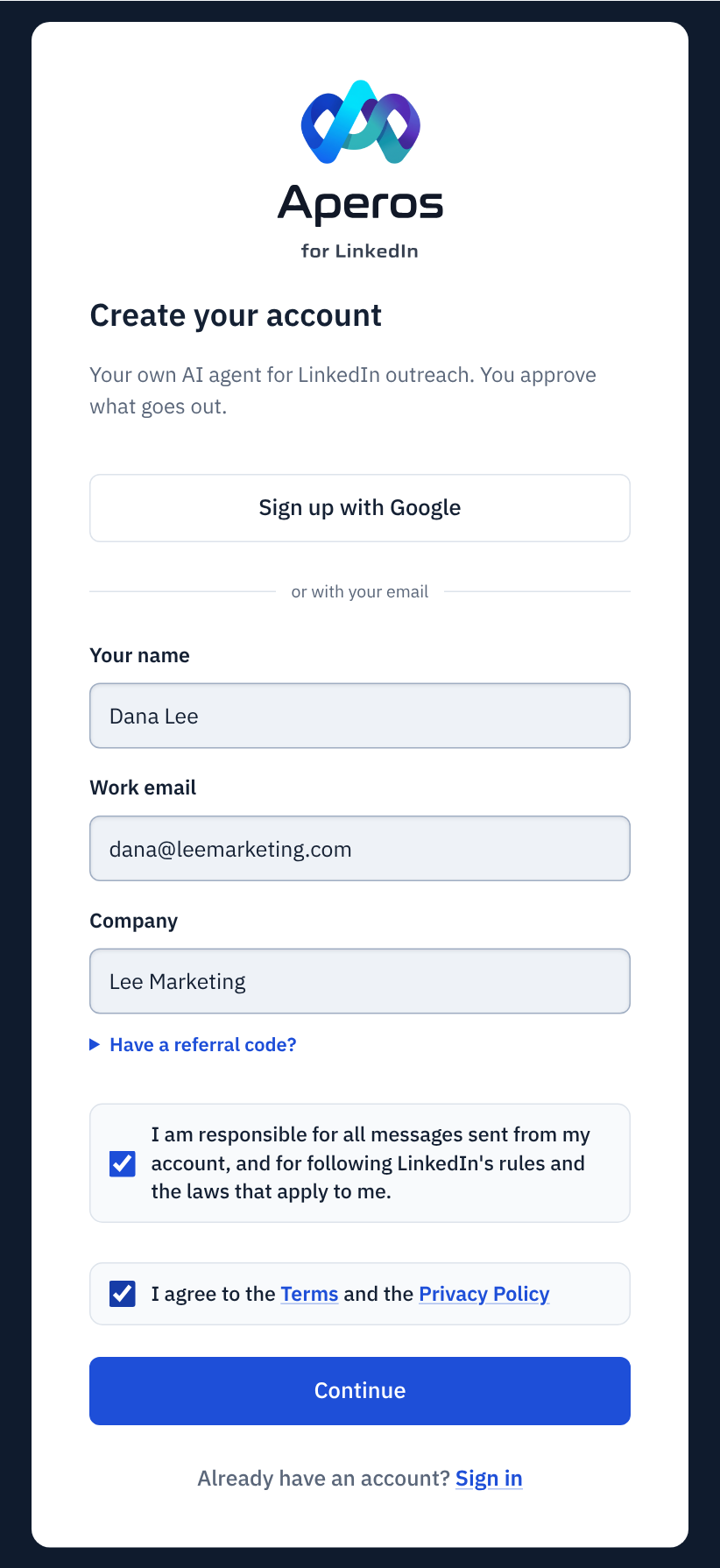
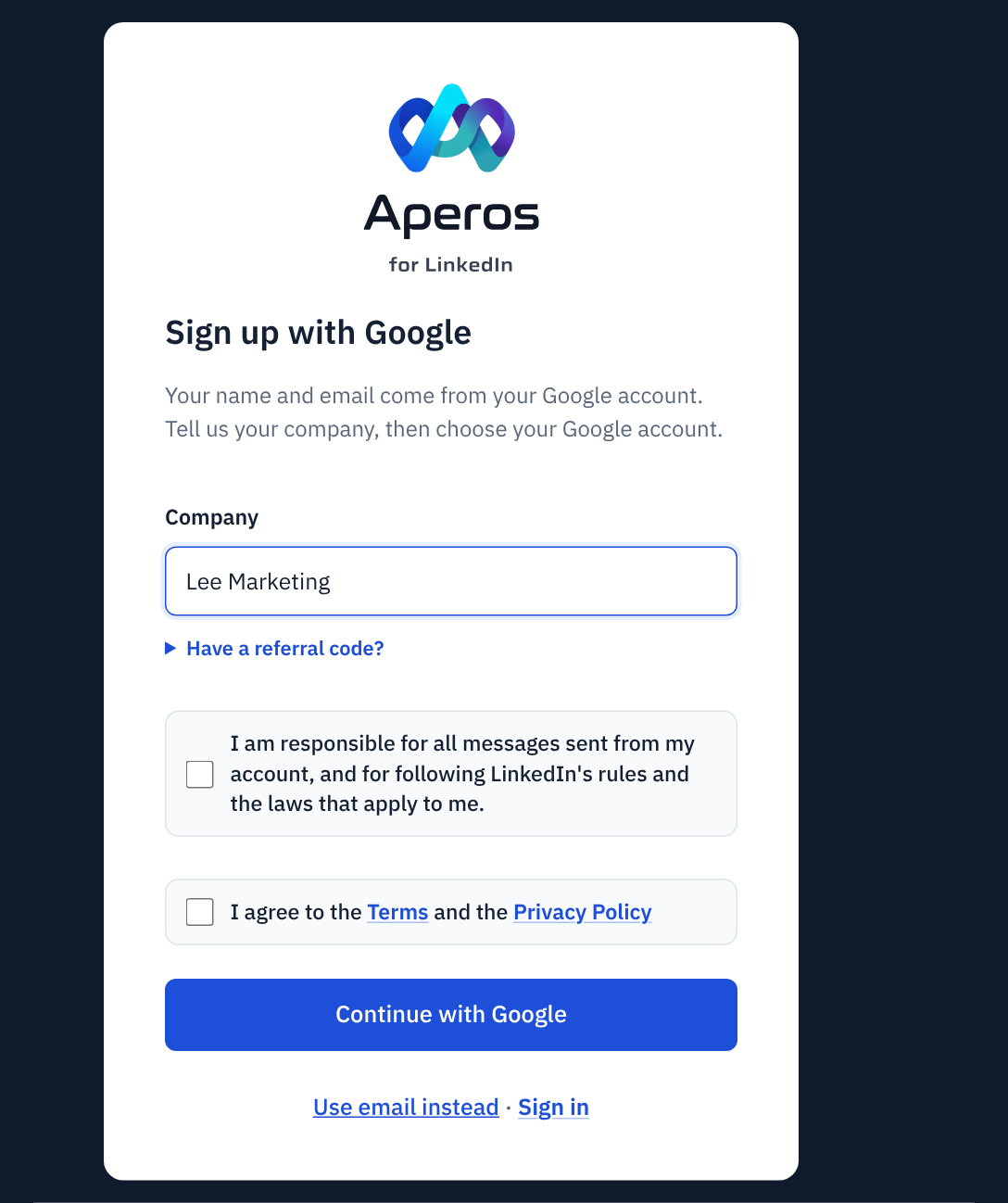
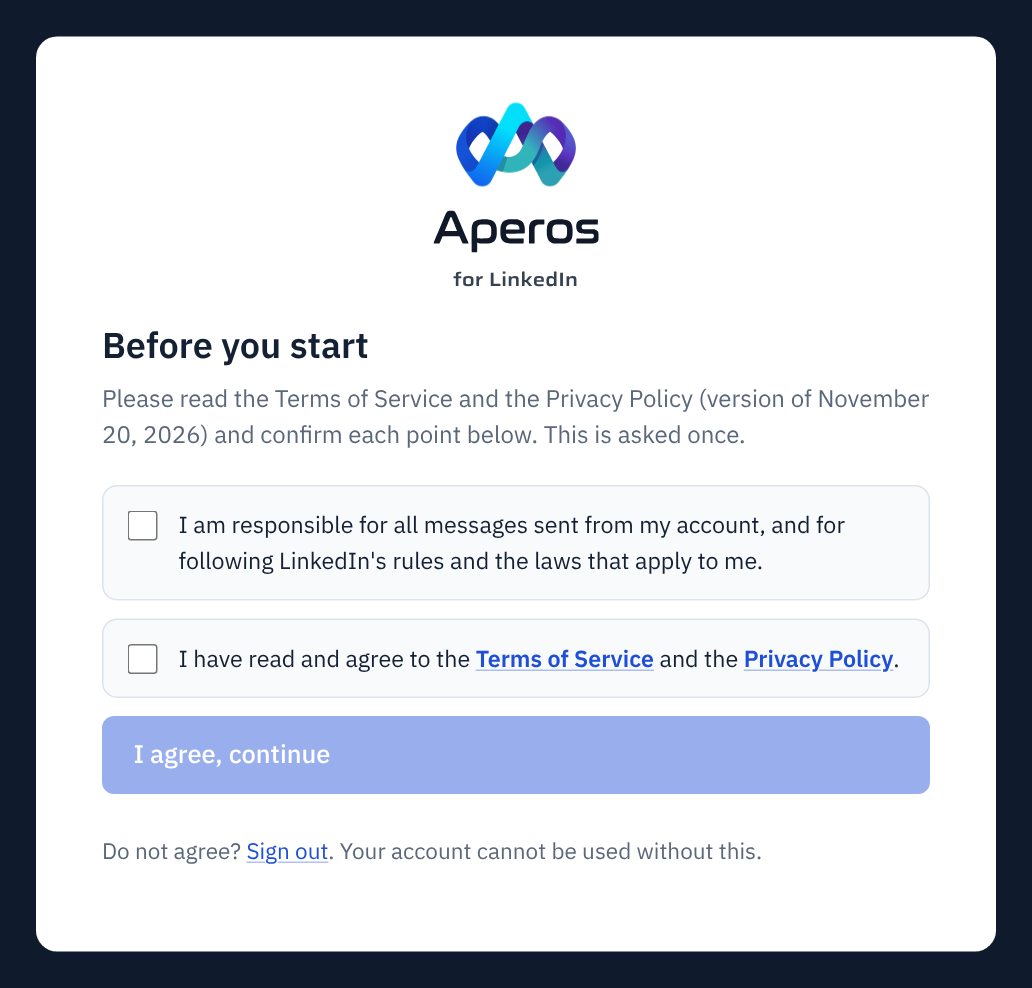
Open linkedin.aperos.ai/register. Type your name, work email and company, or choose Sign up with Google and type only your company name. A referral code goes under Have a referral code? and gives you 14 free days instead of 7. Tick the two boxes (you are responsible for the messages sent from your account and for following LinkedIn's rules and the law; you agree to the Terms and the Privacy Policy), then press Continue.
2. Confirm your email and choose a password
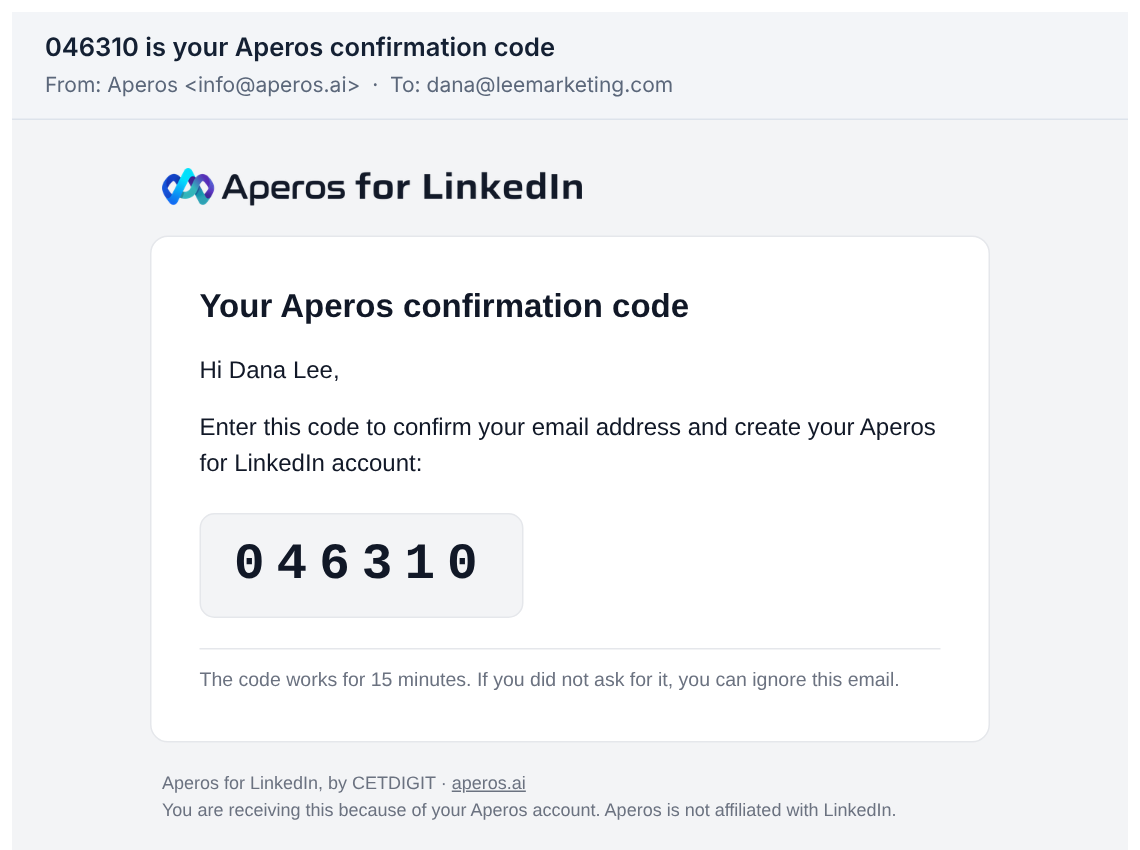
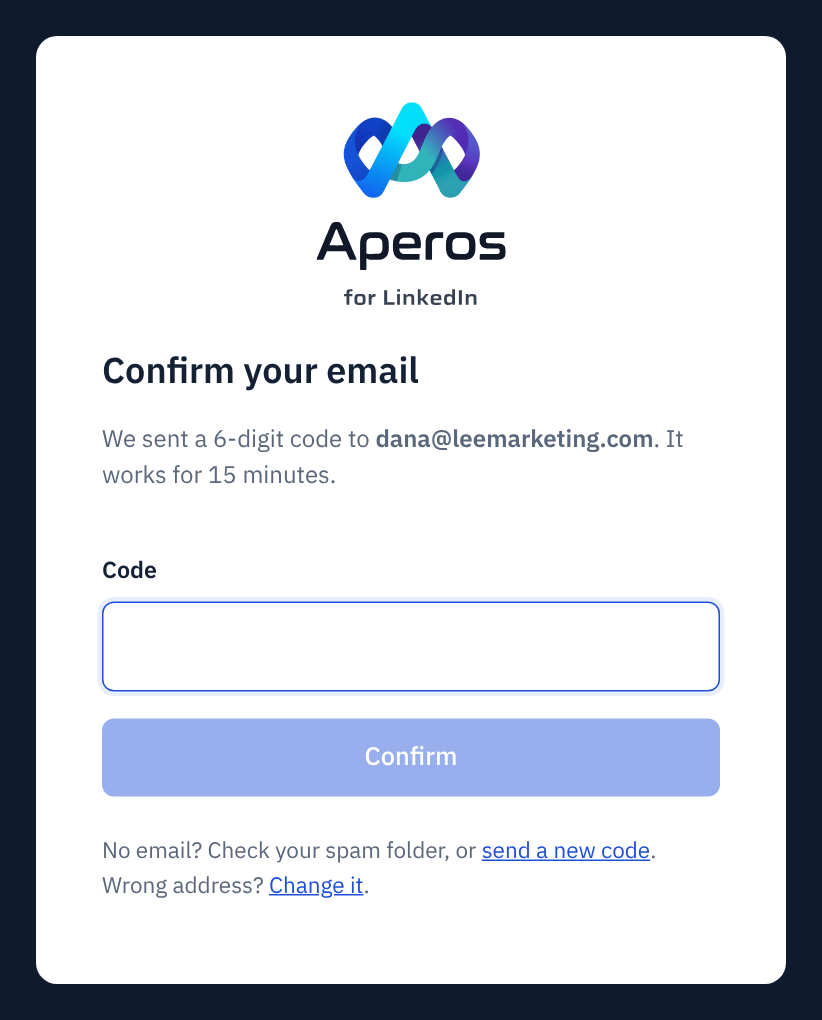
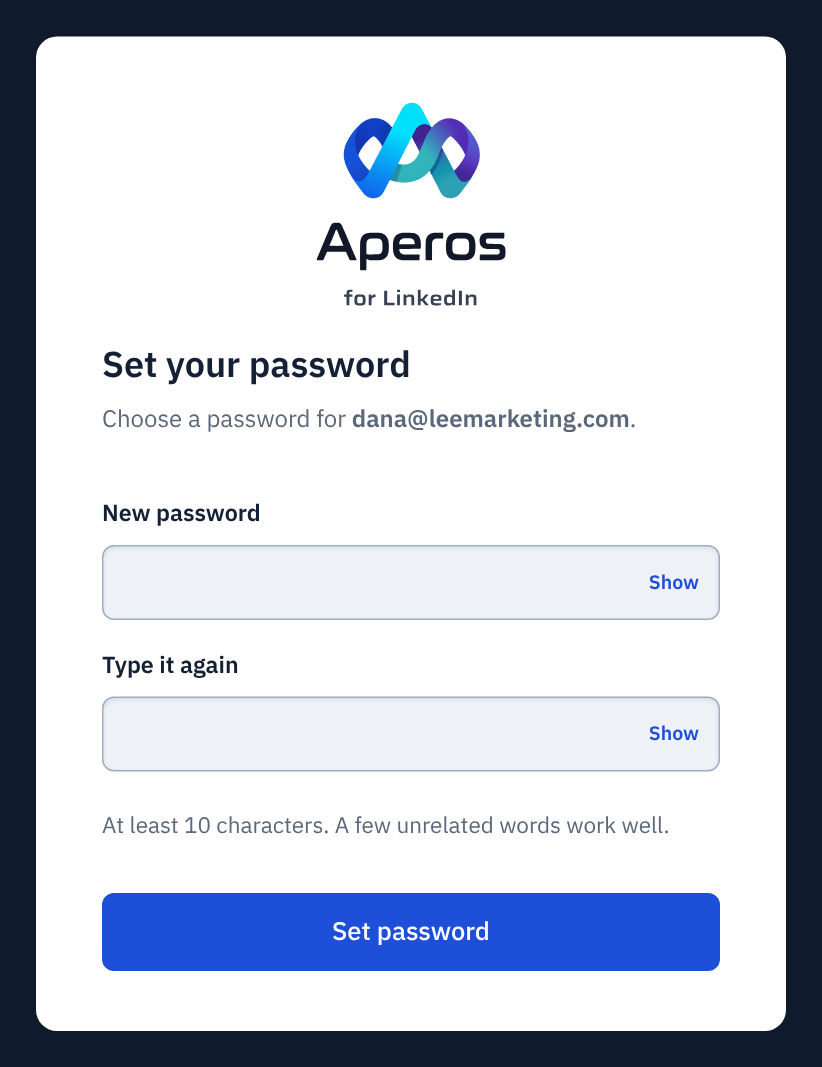
You get an email from Aperos (info@aperos.ai) with a 6-digit code, valid for 15 minutes. Type it on Confirm your email, then choose a password of at least 10 characters and sign in. With Google there is no code or password: Google confirms your email.
3. Two-step sign-in
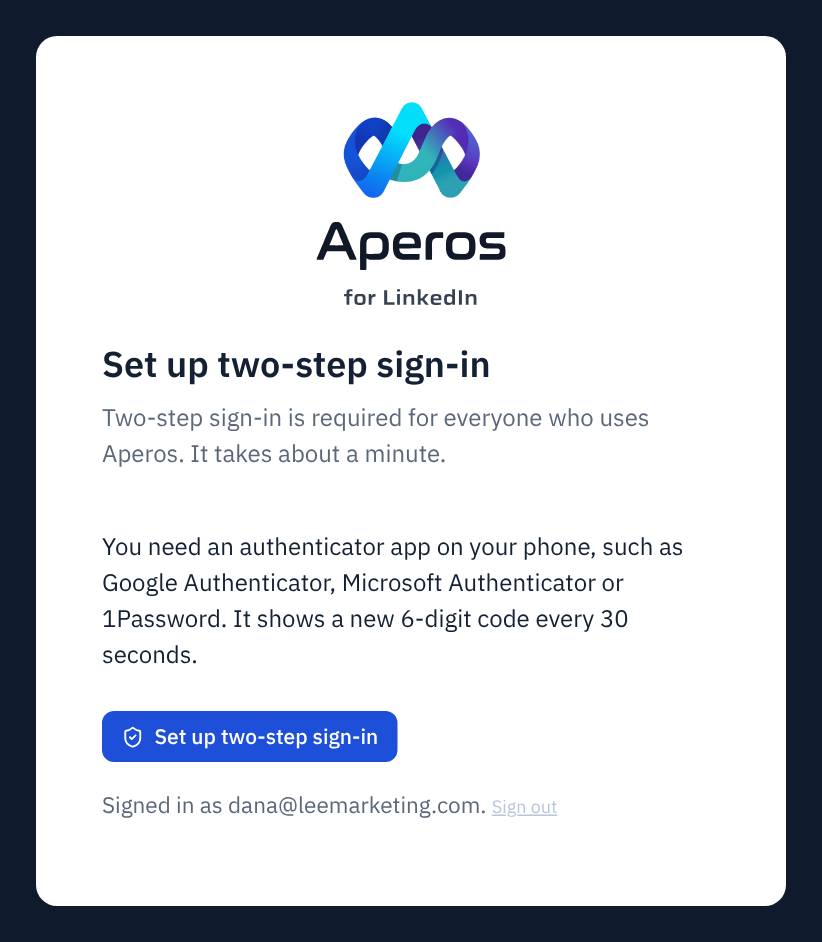
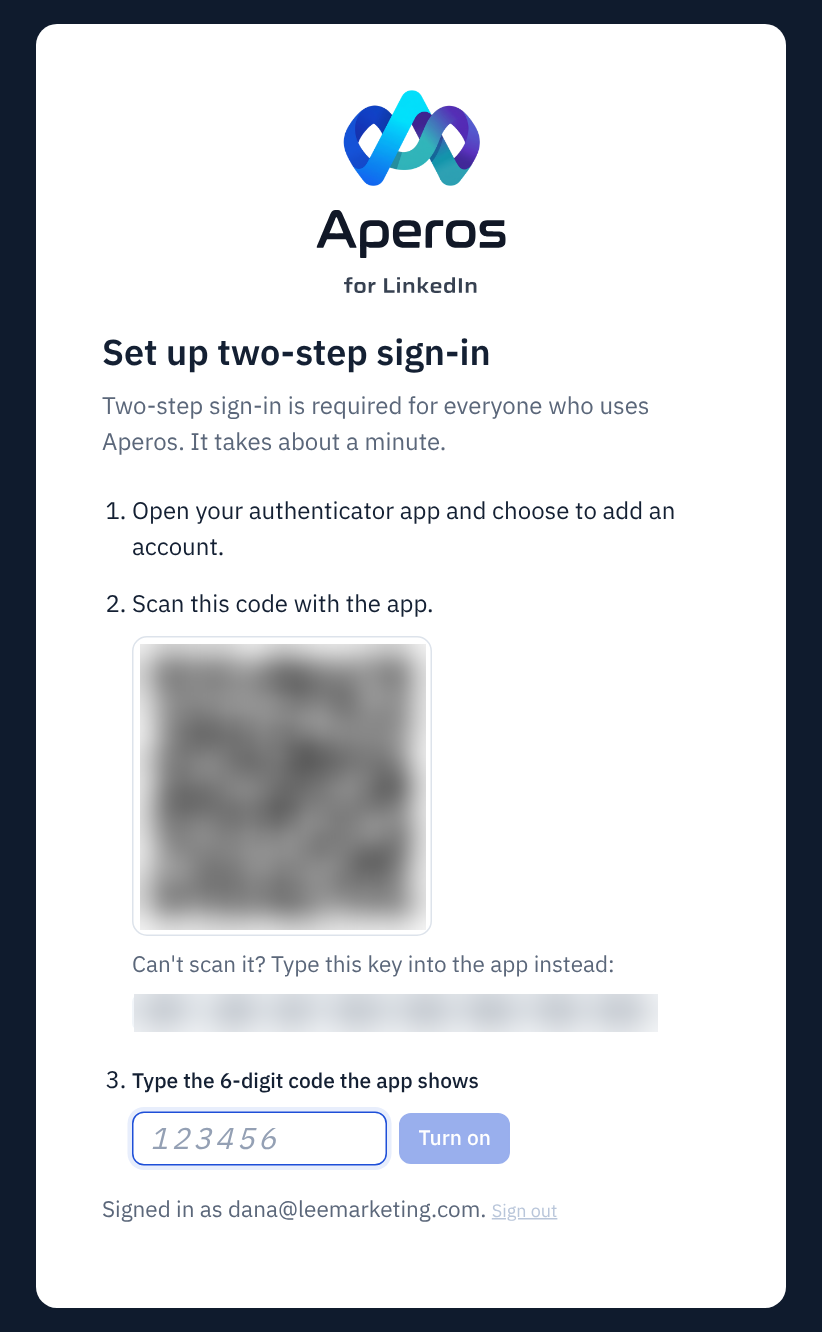
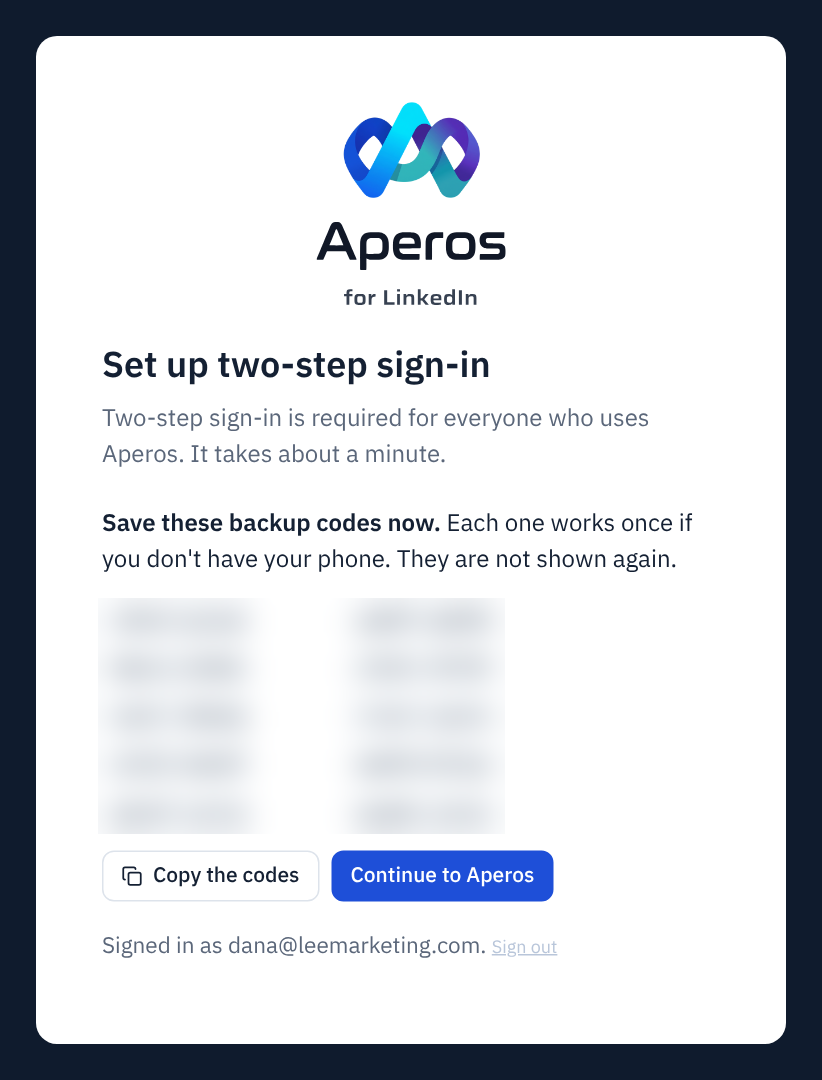
Everyone protects their sign-in with a second step. With an authenticator app on your phone (Google Authenticator, Microsoft Authenticator, 1Password), press Set up two-step sign-in, scan the code, type the 6-digit code and press Turn on. Save the 10 backup codes: each works once if you don't have your phone. Later you can tick Remember this device for 30 days.
4. Agree, choose your plan and add a card
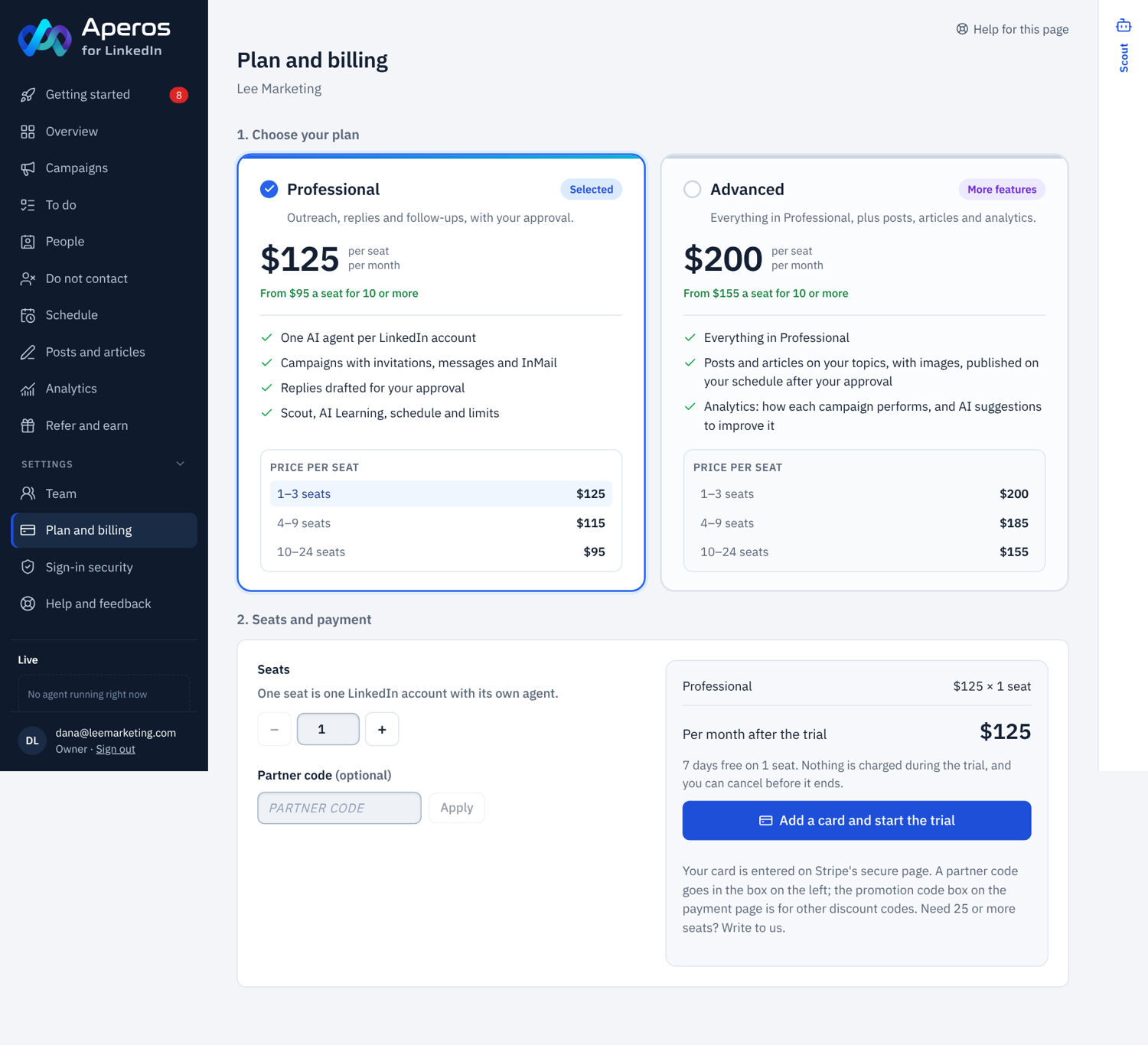
Before you start records your agreement to the same two points. Then, on Plan and billing, choose Professional ($125 a seat a month) or Advanced ($200), set the number of seats (prices drop from 4 seats and again from 10), and press Add a card and start the trial. You enter the card on Stripe's secure page. Nothing is charged during the free days.
5. Your seat is ready
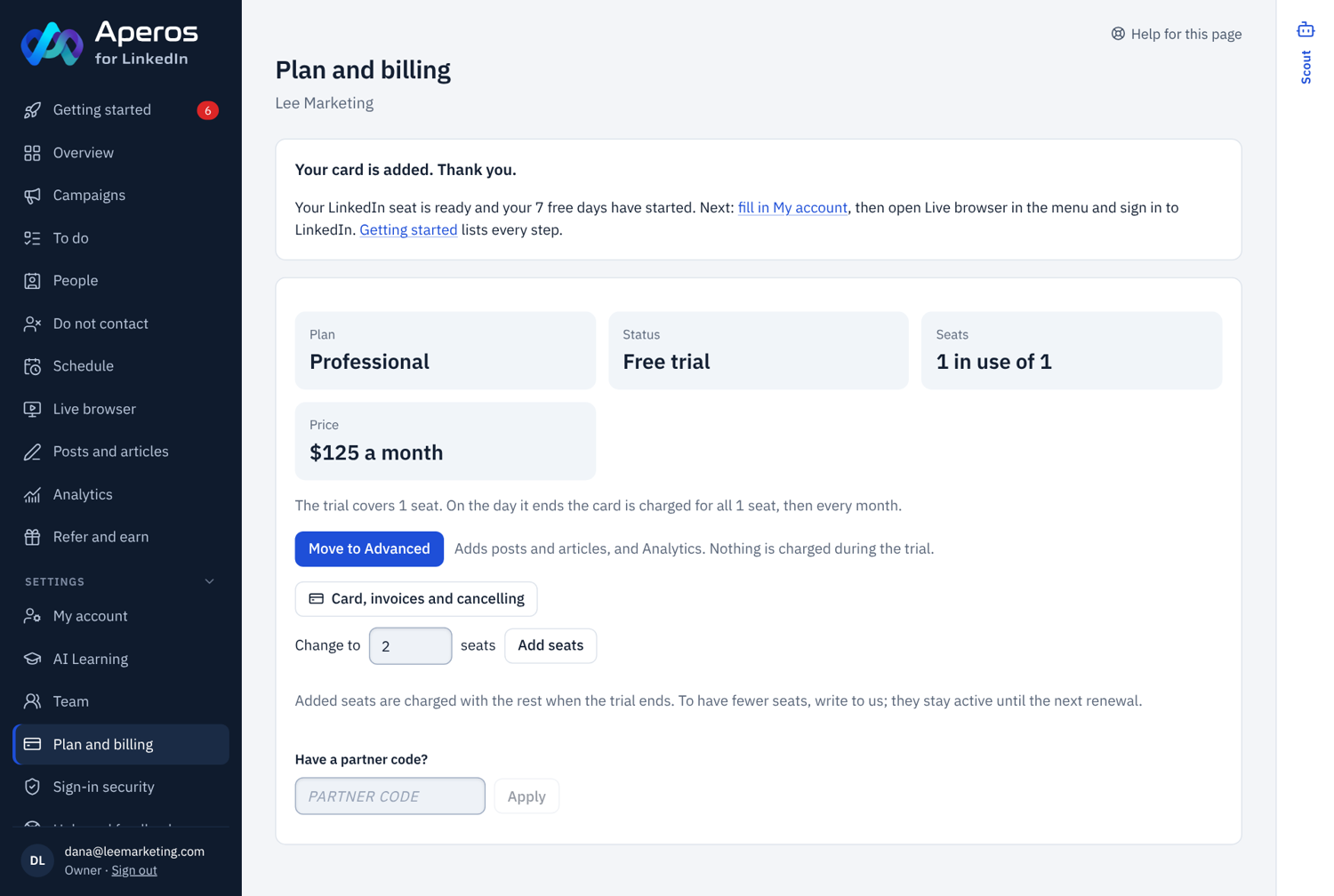
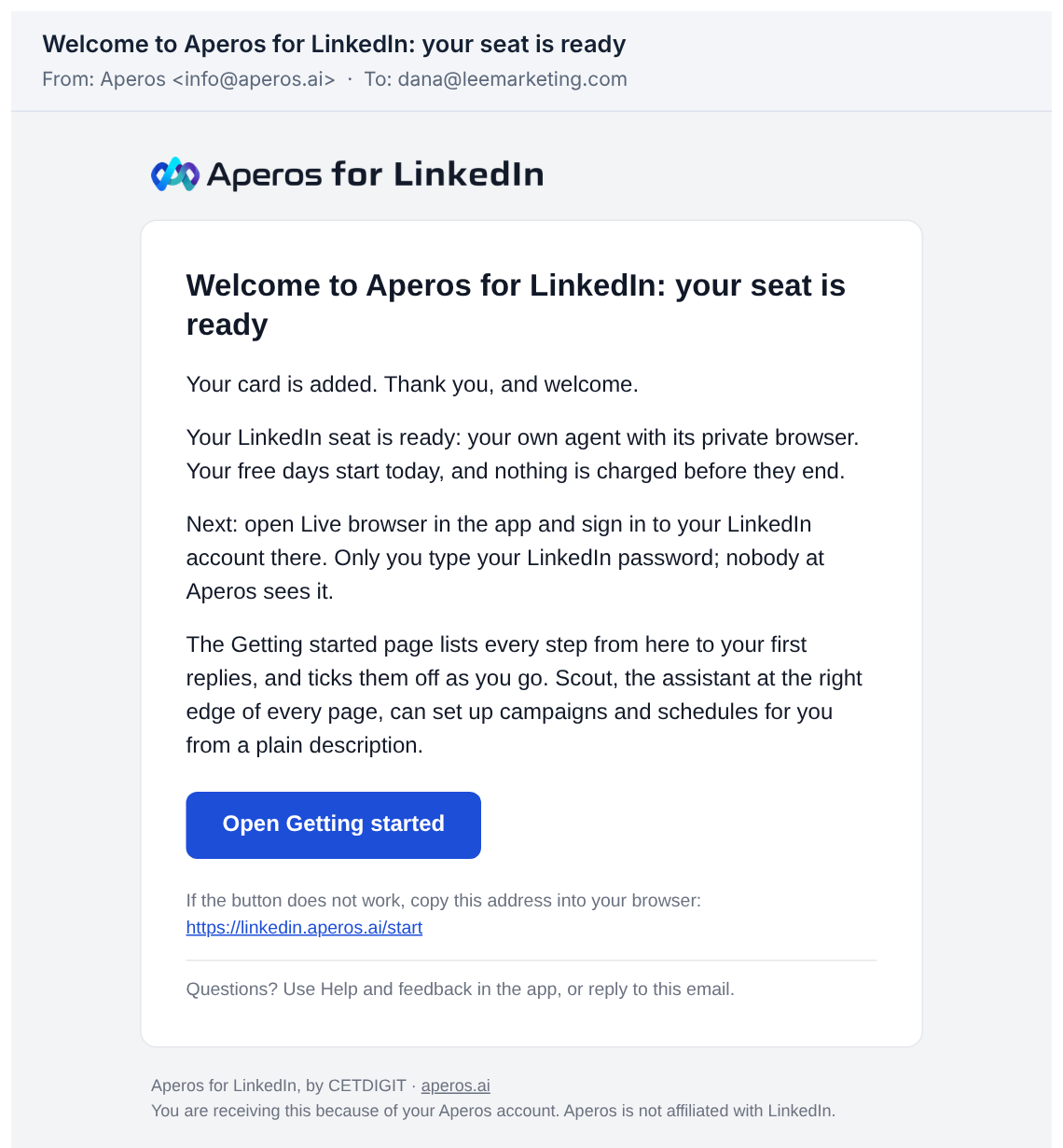
As soon as the card is added, your LinkedIn seat (your own agent with its private browser) is prepared and your free days start. Plan and billing says Your card is added. Thank you., and you get the email Welcome to Aperos for LinkedIn: your seat is ready.
6. My account and LinkedIn
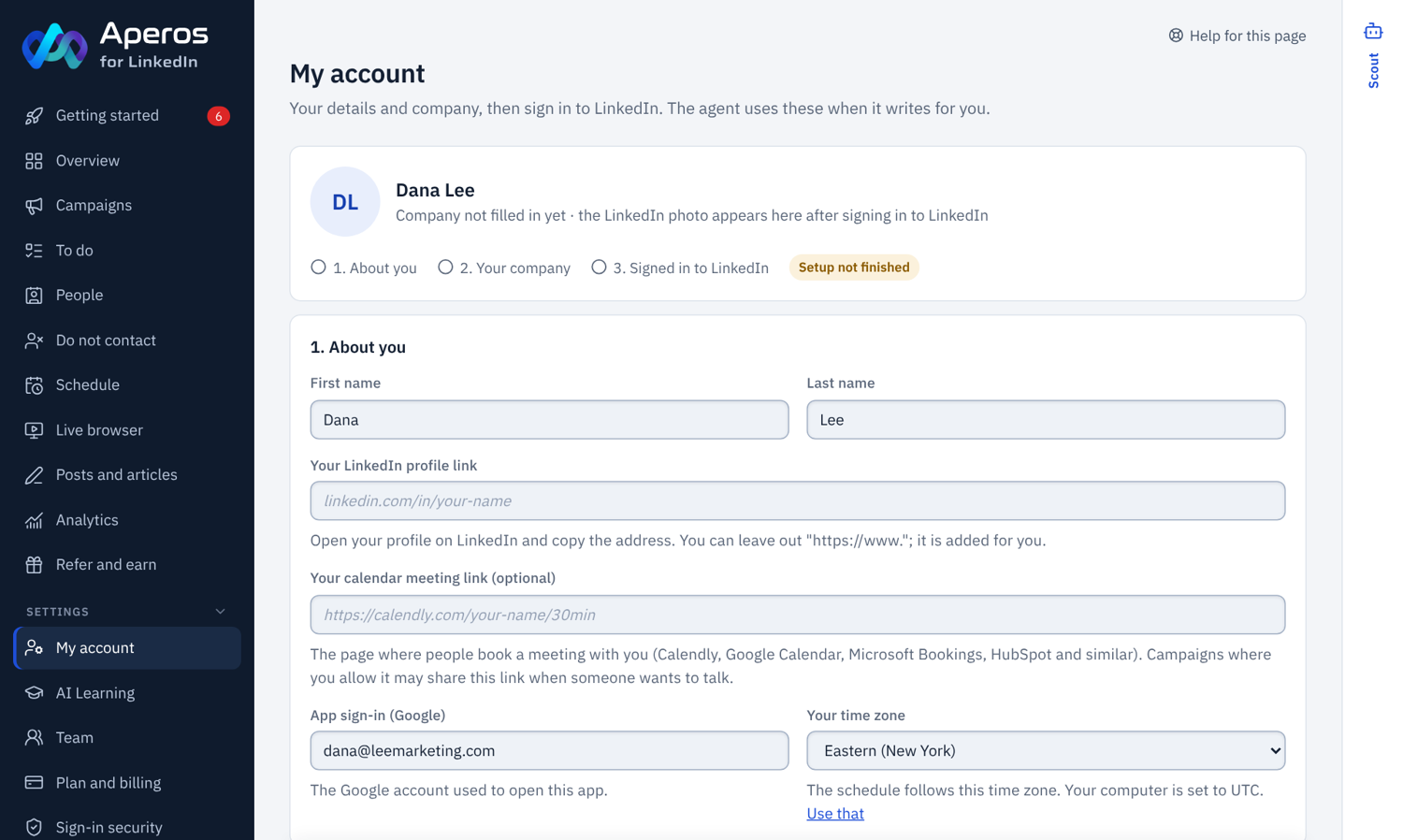
The app takes you to My account. Fill in your name, LinkedIn profile link, company and time zone (the agent uses them in every message), then press Open my browser and sign in to LinkedIn. In the Live browser you type your own LinkedIn password and code; nobody at Aperos sees them. The agent does nothing until LinkedIn is signed in.
7. Getting started
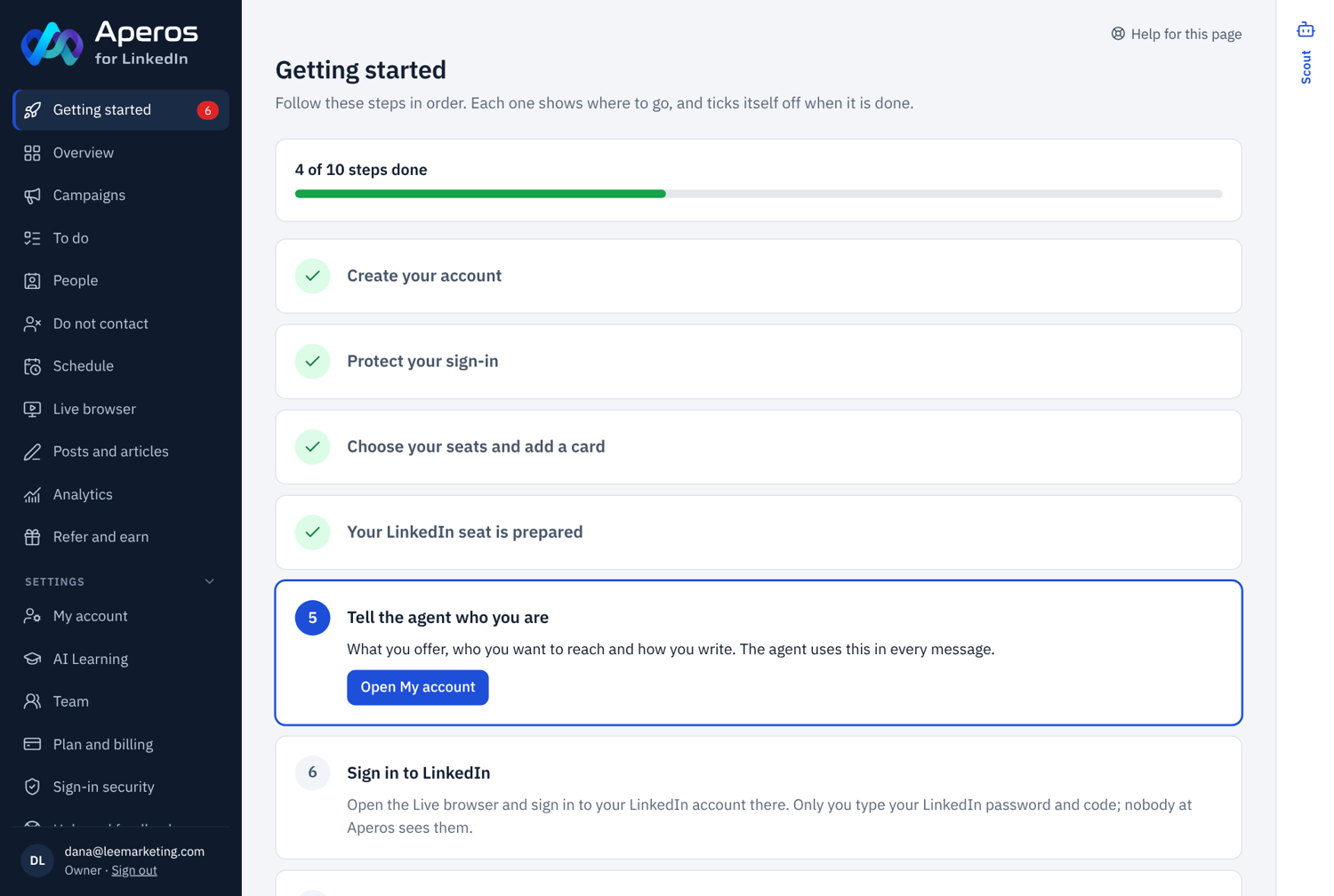
Getting started at the top of the menu ticks off each step by itself: hours and limits, your first campaign, your first approvals and replies. Scout, at the right edge of every page, can set up a campaign or a schedule from a plain description.
Good to know
- You are charged on the day the free days end, for every seat, then monthly. You can cancel before that under Card, invoices and cancelling.
- Lost your phone? Sign in with a backup code, or ask your company owner or Aperos support to reset two-step sign-in.
- Need help? Use Help and feedback in the app or ask Scout.