
Campaigns
What a campaign is and how to create one.
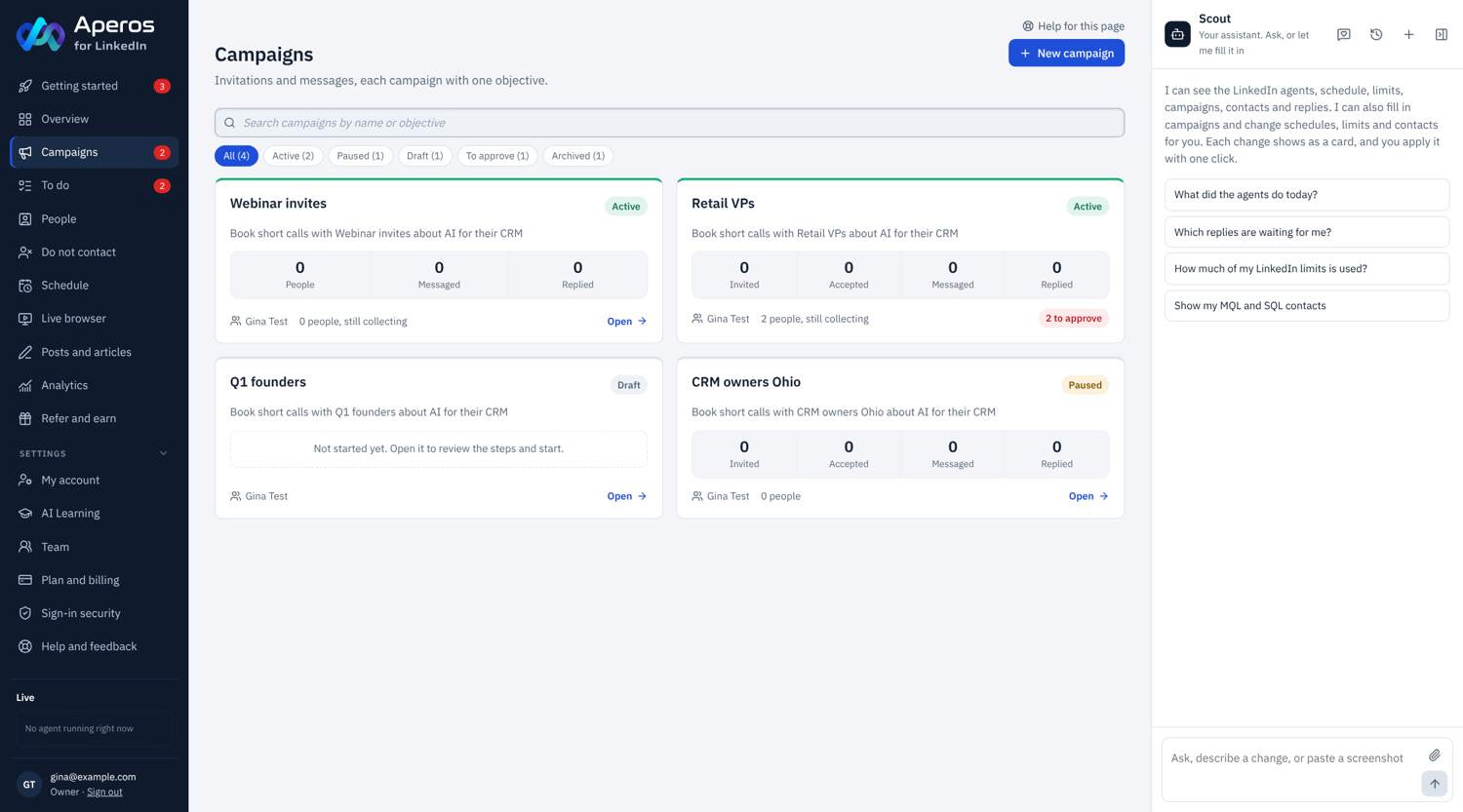
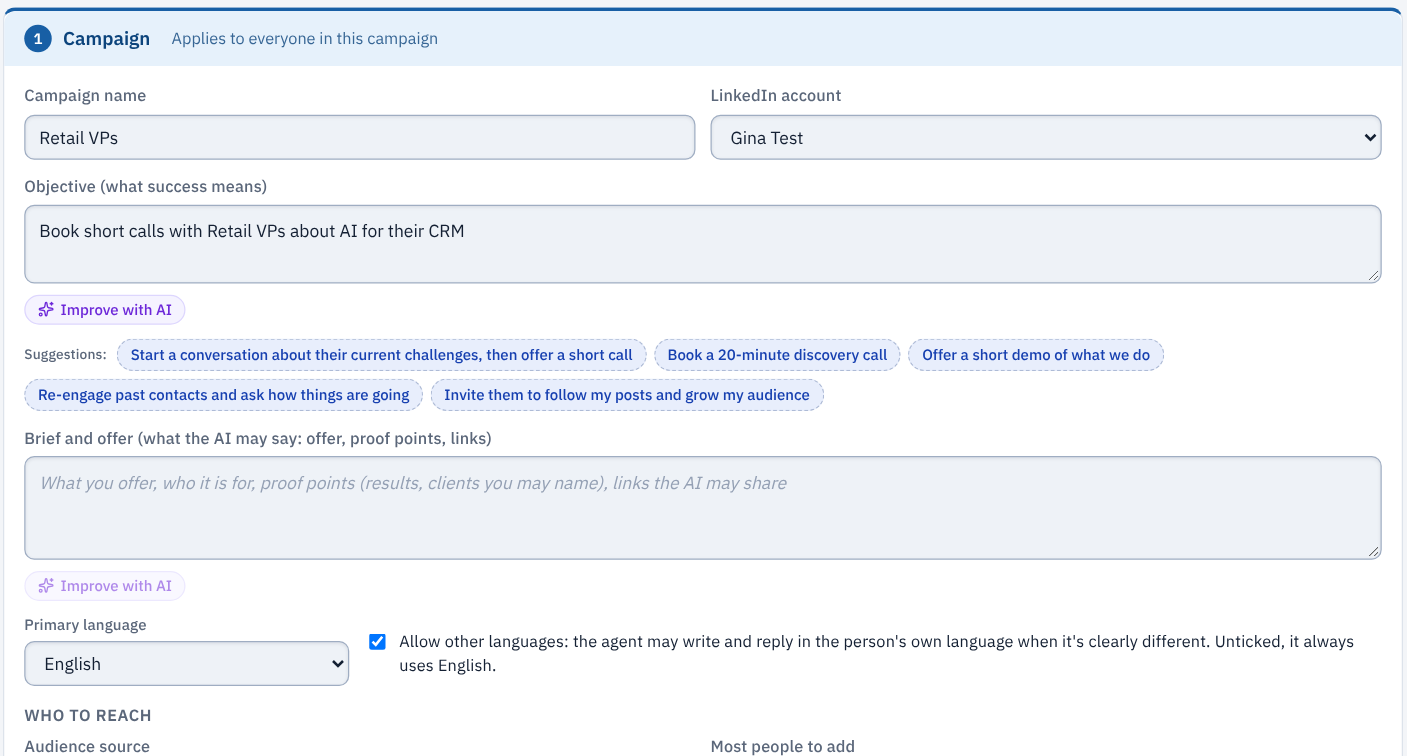
A campaign has one objective, one audience and a set of steps. Create one from Campaigns → New campaign, or ask Scout to prepare it from a plain description.
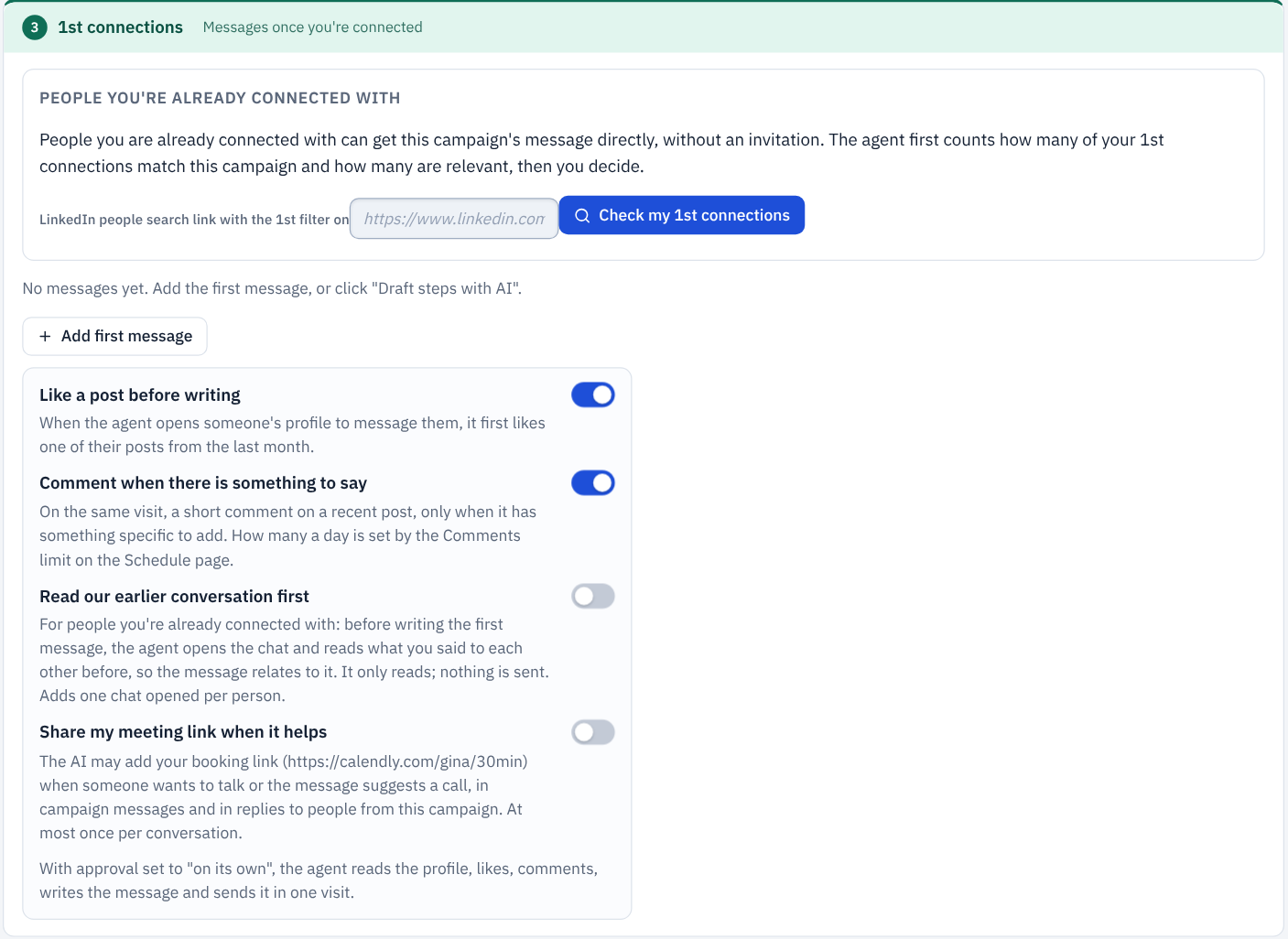
The parts of a campaign
- Objective: what success means, for example "find out which CRM they use and book a short call".
- Brief and offer: what the AI may say: your offer, proof points and links.
- Audience: a LinkedIn or Sales Navigator search link, and/or your existing 1st-degree connections.
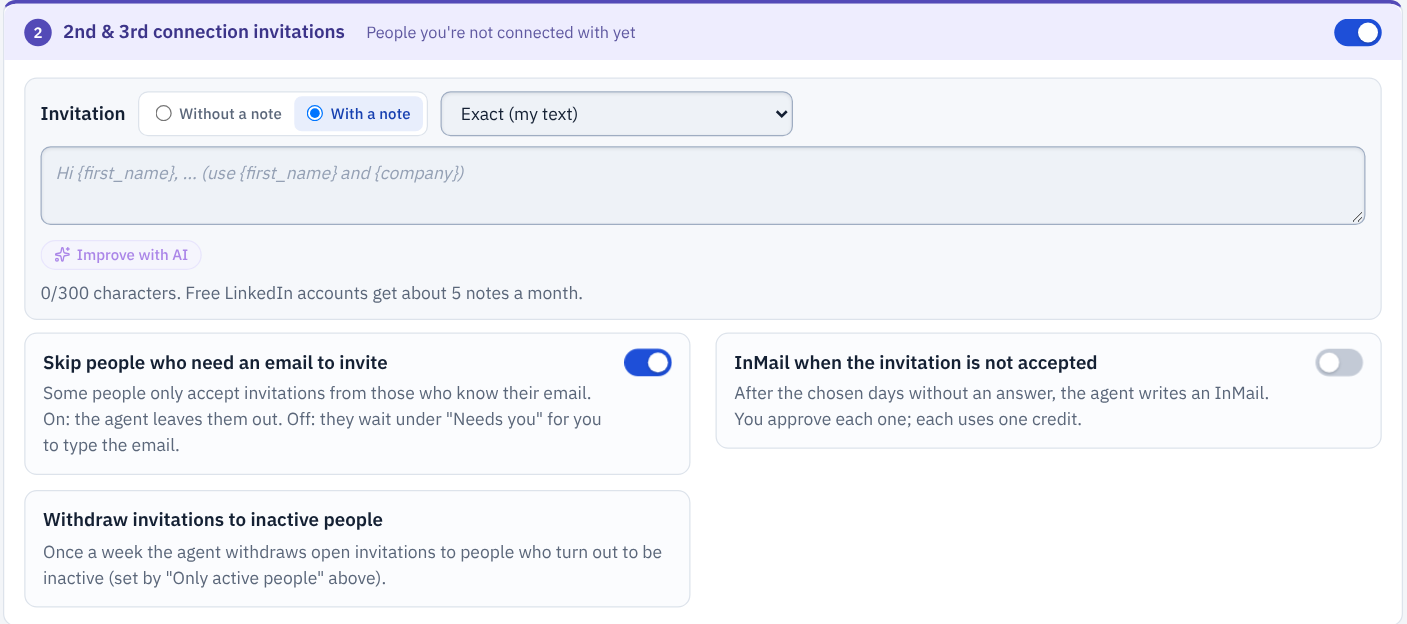
- Steps: an invitation (with or without a note) to 2nd and 3rd-degree people, a first message, follow-up messages after a number of days, and InMail with Sales Navigator.
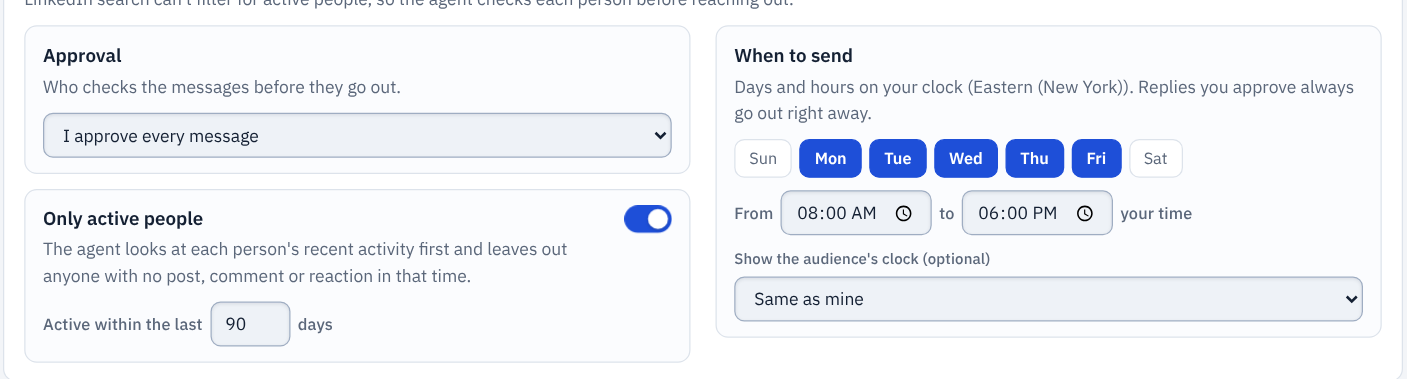
- Approval, sending days and hours, language and options such as like or comment first.
The campaign page
Results, Approvals and Setup tabs: counts for invited, accepted, messaged and replied, and each person with where they stand. Pause stops the campaign; Start runs it again.
Improve with AI next to the objective, brief and message text suggests a better version. You see it first and choose whether to use it.
Saving and starting
- Save takes you back to the campaign page with a green "Campaign saved successfully" message.
- After Start, the page reminds you that a campaign only runs inside your Schedule's blocks (Invitations, 1st-degree messages, InMail). If no block covers it, a yellow note says nothing is sent yet, with a button to the Schedule.
Finding and tidying campaigns
- The Campaigns page has a search box (name, objective, LinkedIn account) and filters: All (everything except archived), Active, Paused, Draft, To approve and Archived.
- Archive on a campaign page stops it and moves it to Archived; results stay and messages waiting for approval are set aside. Unarchive brings it back as Paused.
Results filters
On the Results tab, filters such as Everyone, Invited (waiting), Accepted, Left out and Not contacted yet each have a tip explaining who is in them.